User guide / Settings / Data Sources / Google Play
Google Play
Google Play now connects automatically through your own Chrome or Edge browser. If you would rather not, or you do not have one of those browsers, you can still import your reports by hand.

One Time Report Link Setup
Paste your Google Play Books Partner Center reports URL into the card once. That URL carries your account, so the app knows exactly which report to build links for. You only need to do this once, and it is used for both the automatic and the manual options below.
For Automatic Data Import
The app can fetch your Google Play sales for you through your own Chrome or Edge browser. It opens that browser in a separate profile of its own, not your normal browsing, and you sign in to Google there once. After that, refreshing the dashboard quietly opens that profile for a few seconds to download your latest sales report, then closes it. A browser icon may appear in your taskbar while it works. Your Google password and sign-in stay in that browser profile; the app never sees them.
- Fill in your Google Play reports link at the top of the card (the same Partner Center URL as the setup above).
- Under Automatic Fetch, choose your browser, Google Chrome or Microsoft Edge, and click Connect.
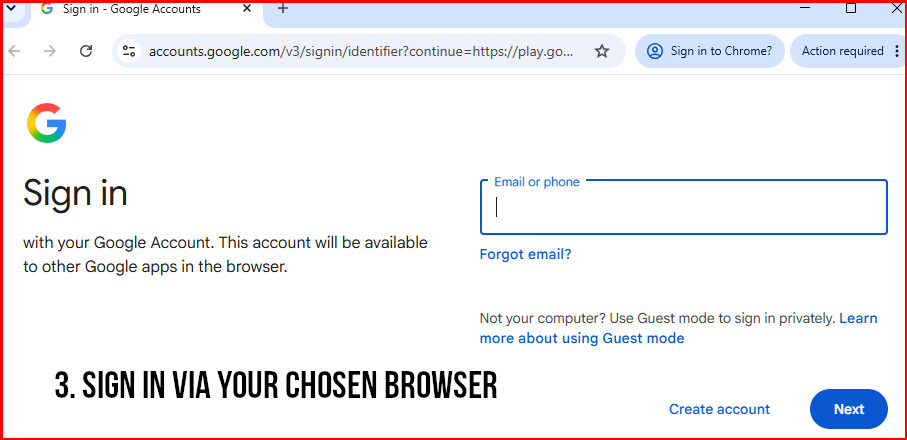
- Sign in to Google in the browser window that opens, using the account you publish with.
- When you can see your Partner Center home page, come back to the app and click I’ve signed in (or close that browser window yourself). The app checks the connection, and from then on it fetches your reports for you.

The first automatic fetch downloads your whole Google sales history. A long history can take a few minutes to import and the app may seem frozen until it finishes, so leave it running that first time.
Manual Importing
If you don’t have a compatible browser or choose not to connect automatically, you can still import your Google Play Books data manually.
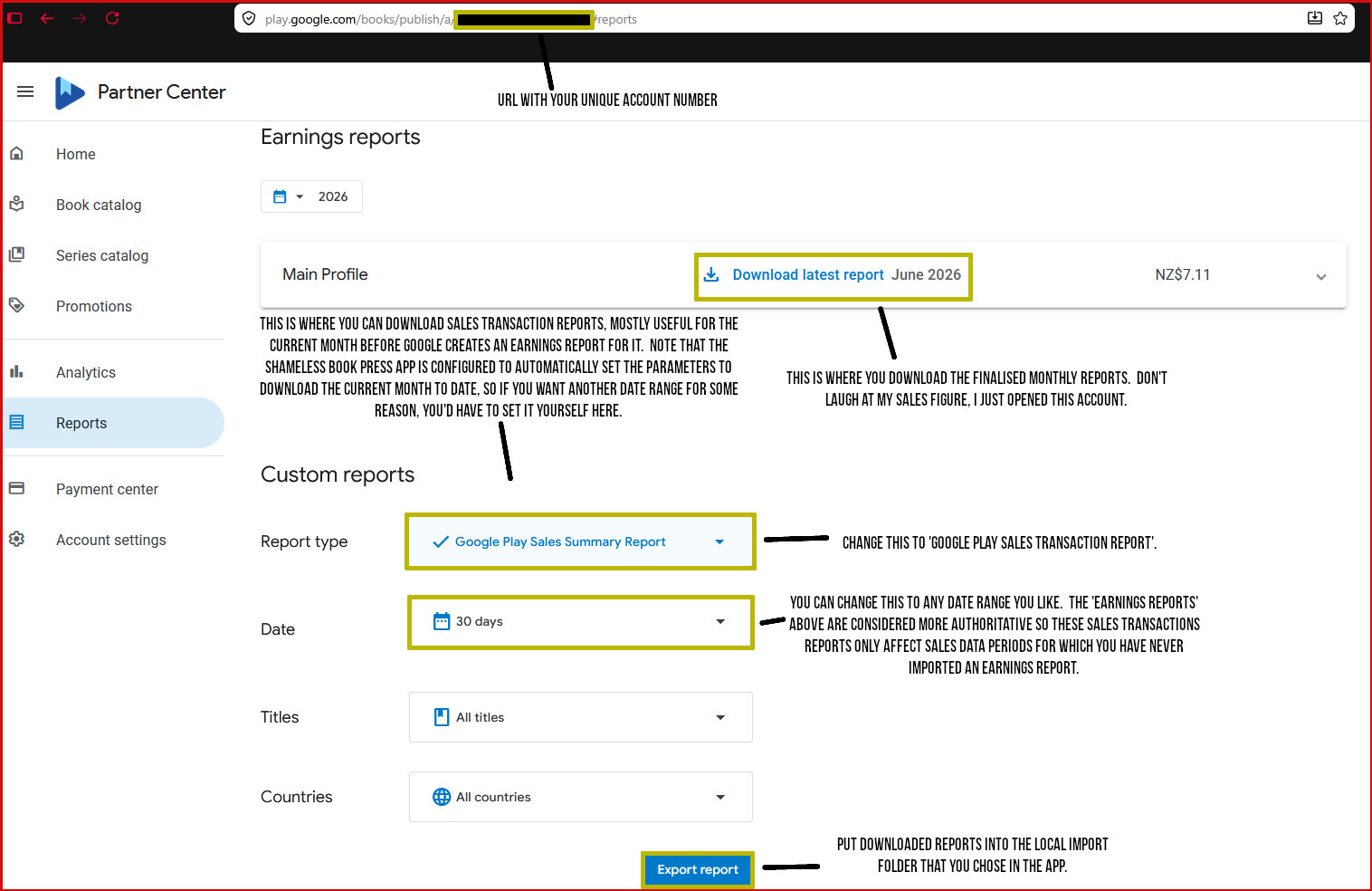
Importing the current month
Google Play gives day-level data. To bring in the current month:
- Use Open in browser (or Copy report link) to download the Sales Transaction Report. Because you are signed in to Google in your own browser, it saves the file directly.
- Once the report is in your chosen local import folder, press Scan Now.
Filling in your history: two ways
For everything before the current month you get a choice, and you can use both. One way is quick but approximate, the other is exact but takes more work.
The quick way: one all-time report
With a long history you do not need to download a report for every month. Use Copy all-time report link (or Open in browser) in the browser profile signed in to Google Play Books, and download a single Sales Transaction Report covering every sale you have ever made. Save it to your local import folder and press Scan Now. Each sale lands in the month it happened.
These figures are close but not exact. Google finalises its currency conversion at payout, so converted amounts can differ from the official monthly figures by a few cents per period, depending on how much the exchange rate moved at the time. Those differences are small, were often not large to begin with, and over a long history they tend to cancel each other out, so your totals land very close.
A long all-time report can be a big file and take a few minutes to import. The app may look frozen while it works, so just leave it running until it finishes.
The exact way: monthly Earnings reports
Google’s Earnings reports are the authoritative, finalised figures, accurate to the cent. The catch is there is one per month, so a decade of history is a lot of downloads. Find the Earnings report for a month on the same reports page, download it to your local import folder, and Scan Now.
The two mix cleanly. Import the all-time report first for a complete picture straight away, then drop in Earnings reports for any months you want precise. Each Earnings report you import automatically supersedes that month’s Sales Transaction Report data, so your history only gets more accurate over time, with no double counting.
We offer the “Copy report link” button in addition to “Open in browser” in case your Google Play account is not logged in using whatever your default browser is. During development this was an issue that came up for me since I use a separate browser profile for each of my pen names and another for myself outside of working life, so maybe some of you do too?